
Where to find Messages
Sign in to your customer portal (the link your cleaning company sent you, or my.cleanscheduler.com). Open Messages in the sidebar to see every conversation with your providers.
If you work with more than one cleaning company on Clean Scheduler, pick the provider when you start a new message.
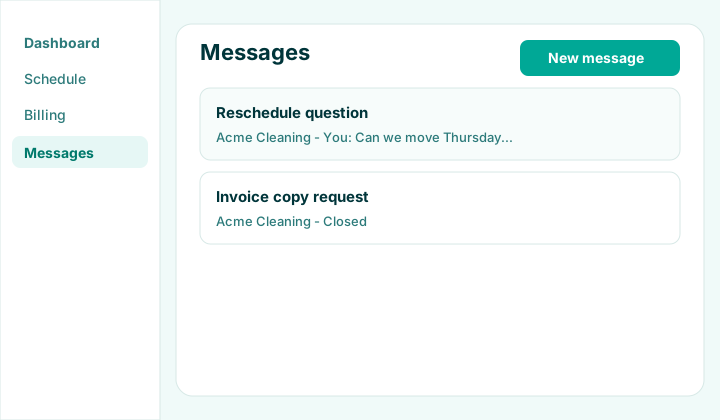
Start a new conversation
Tap or click New message, choose your provider, add a short subject, and write your question. Your provider’s office team sees it in their workspace inbox.
- Use a clear subject (for example “Reschedule question” or “Billing on last invoice”).
- Include the address or appointment date if it helps them find your account faster.
- You do not need to call or email separately — replies stay in the same thread.
Reply on an open thread
Open any active conversation to read the full history. When the thread is still open, type a reply at the bottom and send it. The message shows in the thread right away. Press Command+Enter on a Mac, or Ctrl+Enter on Windows, to send. Enter by itself starts a new line.
Your provider is notified by email when you send or reply (they can turn this off in their settings). If someone on their team has the workspace open, they also see a notice right away.
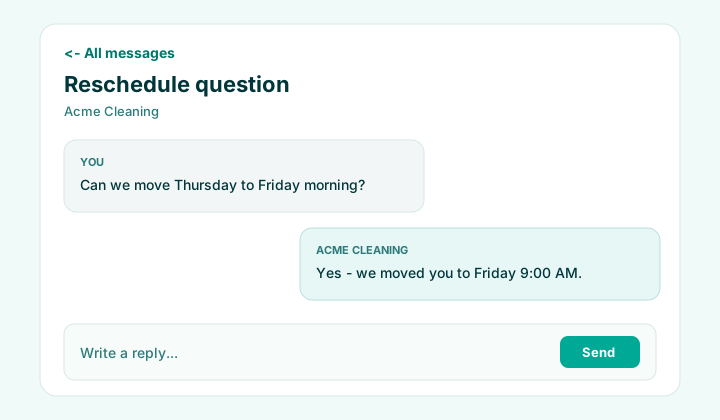
When your provider replies
If you have the portal open, the conversation updates on its own and a notice appears when the reply is new. The reply shows the name of the person on the team who wrote it. On Messages you can turn on browser notifications so that notice still stands out when you are on another page.
If the portal is closed, the reply is emailed to the address on your account unless your provider turns that off.
When a conversation is closed
Providers may close a thread after your question is resolved. Closed threads are read-only — start a new message if you need more help.
For urgent scheduling changes, also check Schedule in your portal to view upcoming visits or request a reschedule.
FAQ
Will I get an email when my provider replies?
Yes, unless your provider turns reply emails off. The message goes to the email on your account. If you are already in the portal, the conversation updates on its own, and you can allow browser notifications from Messages.
Can I text my provider instead?
Some companies send visit reminders or quote links by text. Two-way texting in Messages is in-app only; use the portal for a written record both sides can reference.
I do not see Messages in my portal
Your provider must invite you to their customer portal first. Accept the invite email, finish setup, then Messages appears in the navigation.